.svg)
To make adjustments to UDOIT's default scoring configuration for your institution, you may follow these steps:
- In Canvas, select Admin from the global navigation.
- Select your root level Canvas account (or the highest subaccount where UDOIT has been installed, if not at the root level).
- Choose UDOIT Admin from the admin menu on the left.
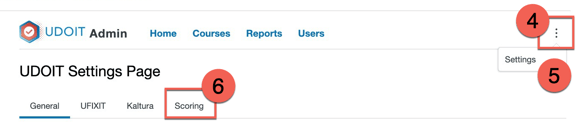
- In the upper right, select the kebab menu.
- Choose Settings from the dropdown that appears.
- Select the Scoring tab.
- Use the "Scoring Settings" toggles to indicate whether or not you wish to include Unused and Unpublished content and files in your course scores.
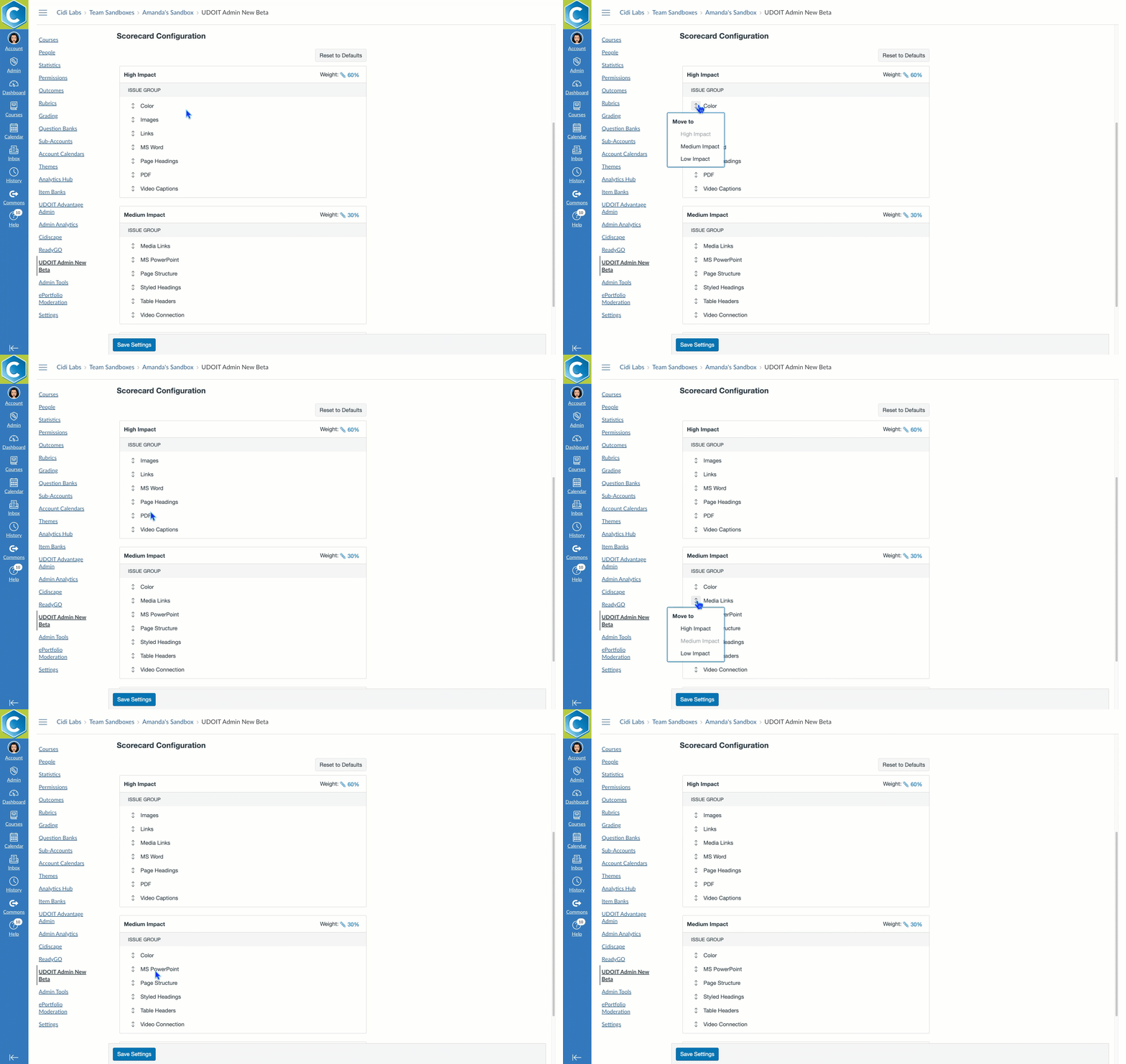
- Under "Scorecard Configuration," you can modify which Issue Types are considered as High, Medium, or Low Impact, by selecting the double arrow "Move to" icon next to each item and selecting the new category you'd prefer.
- Under "Scorecard Configuration," you can modify what weighting is given to each Impact Category in the final Course Accessibility Score calculation. To do so, select the existing weight percentage for any category, and adjust the numbers.
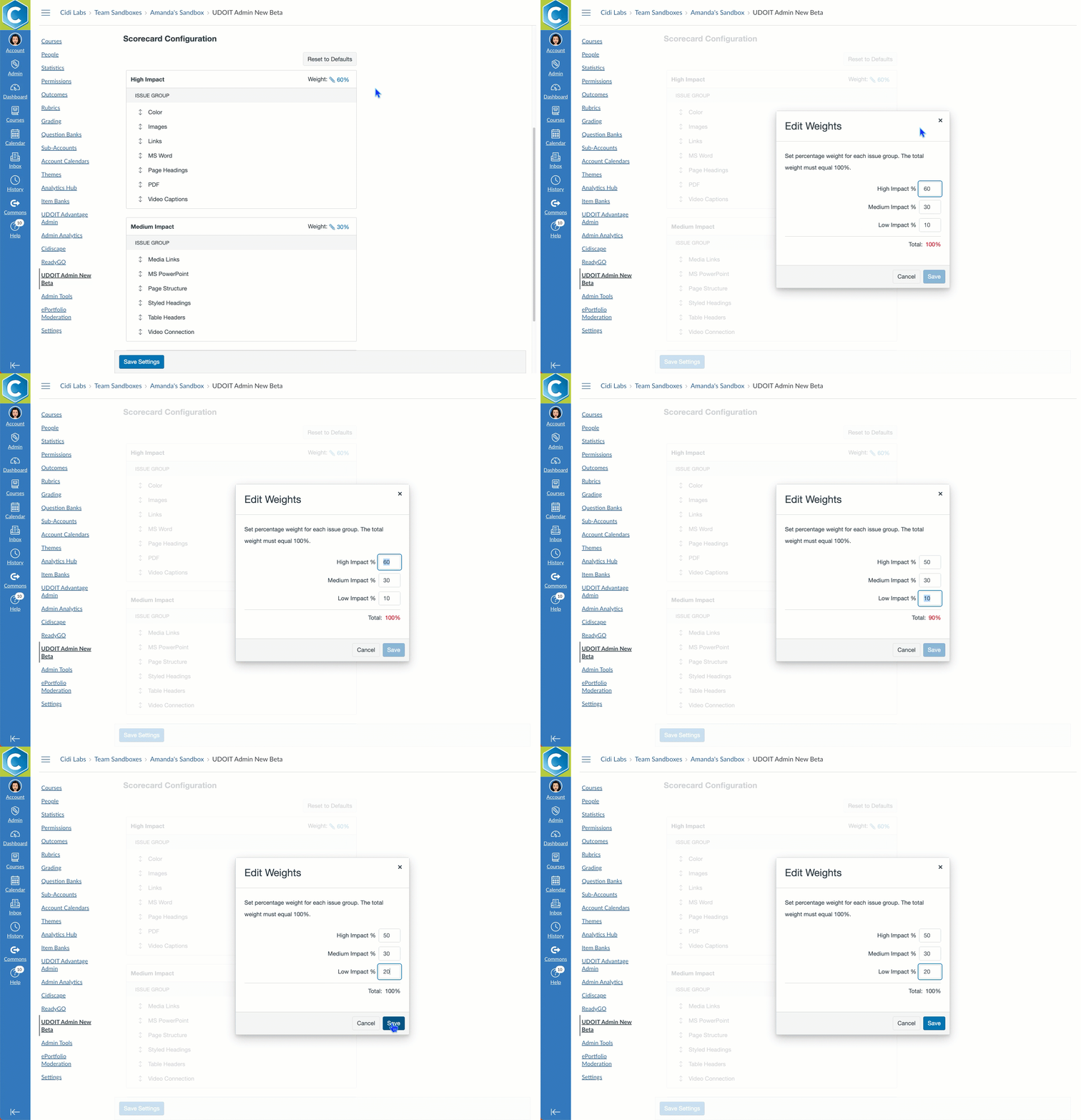
- Select the Save Settings button at the bottom.
Learn more about admin settings:
UDOIT User Guide - Admin Settings