.svg)
Steps to Enable Beta Features
-
In the upper right corner of the DesignPLUS Sidebar, locate and select the kebab menu.
-
Select "User Settings" and scroll down until you see Enable Beta Tools.
- Select the checkbox next to Enable Beta Tools. Your changes will be saved automatically.
I've enabled Beta Features! Now what?
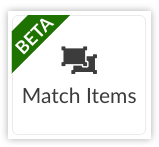 As soon as you select the checkbox to enable beta tools, head on over to the Add New Elements tab in your DesignPLUS Sidebar. The sidebar will now load tools that are still in the beta phase of release. You'll know if a tool is in beta if it has a green ribbon in the corner of the tool's icon like the one you see here.
Things To Keep In Mind
These tools are brand new, and may still have some rough edges. The beta phase is intended to allow our super users the earliest possible access to new features and to provide time for our documentation and marketing teams to build guiding content and resources for all our users. Your input and feedback is instrumental in building robust documentation for these beta tools as they near their full release date.
Additional Resources: