.svg)
Automatic Scans
Any time a course is added to ReadyGO for the first time, an automatic scan will begin immediately.
When the Live Events feature is enabled, ReadyGO is updated whenever key events / changes occur in Canvas, resulting in greater efficiency and speed in the data updates. Courses that aren’t currently being updated are still scanned, but at a lower frequency in the background so we can prioritize active course activity.
In the past, automated scans followed a time-based cycle (you may remember the “72-hour scan” window). For institutions that do not enable Live Events, background scans will still run; however, they no longer follow a guaranteed timeline. All courses will be scanned, but completion times may vary based on system activity. Therefore, enabling Live Events is recommended if keeping data updated in near real-time is a priority.
Canvas Live Events
Live Events is a feature in Canvas that provides automatic notification to products that use this capability whenever important changes happen in courses. These changes might include updates to pages, creation of assignments, or publishing of content.
For information on setting up Canvas Live Events for ReadyGO:
ReadyGO User Guide - Manage: Live Events
Manual Scans
Any time a user would like to refresh data for an individual course or multiple courses in a Batch, they may scan courses on-demand.
To help make it easy to identify courses whose data may need refreshing, we mark courses that have not been scanned in the past 24 hours with a light purple diagonal stripe.
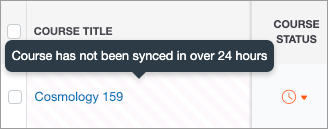
There are a few ways to perform a manual scan:
- If you select the course's name from the Courses Table, it will take you to the Course Details page. This will automatically kick off a fresh scan of that course's data, and your page will refresh shortly with the new information.
- Also from the Course Details page, you'll have a button in the upper right that will "Sync LMS Data" on command.
- On the Courses Table, under the Actions column, you can follow these steps to Scan the Course.
- If you'd like to refresh the data for multiple courses, you may do so from the Courses Table by following these steps to Bulk Scan Courses. To receive the most prompt return of data from your batch scans, we recommend scanning a few courses at a time, rather than running a whole Batch of courses at once.