.svg)
First, review the differences between ReadyGO and Cidiscape.
For Institutions Licensing ReadyGO
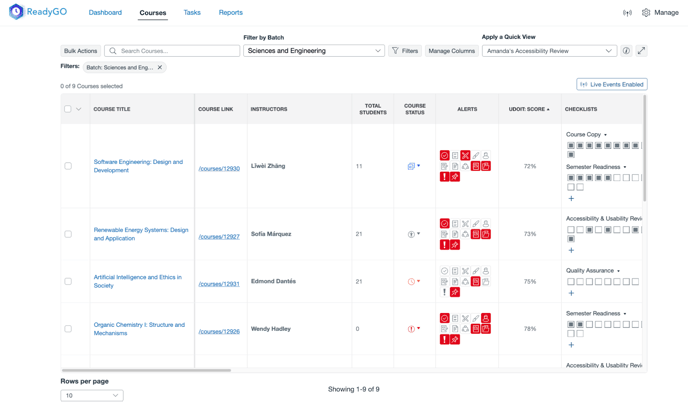
ReadyGO is a course lifecycle management system that helps scale best practices and streamline the work required to effectively develop, deliver, and continuously improve Canvas courses. It surfaces the data you need and gives you the tools to seamlessly act upon that data in a way that is fully integrated with Canvas.
- Create a Batch to group together all courses you need to review – mirror your existing term and subaccount structure, or create a completely custom grouping of, say, your General Education courses.
- Create QuickViews to surface the data you need, such as overall accessibility course scores and scores on high-impact categories. Optionally, add Filters to focus only on high-priority courses, such as those with the highest enrollment.
- Set up customizable Alerts to quickly identify courses with many issues or low scores.
- Create a Checklist for Accessibility and Usability reviews that guide course designers in identifying, fixing, and proactively avoiding common accessibility concerns. You can even share that checklist through the Instructor Tool so educators can access it from within their Canvas course. Add links to resources to the task descriptions for even more just-in-time support.
- In the Courses Table, use Filters to focus on a particular set of courses (e.g., Total Students greater than X and Image issues greater than X) and use ReadyGO’s bulk messaging feature to share resources with instructors, such as links to the ULEARN Accessibility Guide.
For Institutions Using our free Cidiscape reporting tool
- Create a Batch to group together all courses you need to review – mirror your existing term and subaccount structure, or create a completely custom grouping of, say, your General Education courses.
- Create QuickViews to surface the data you need, such as overall accessibility course scores and scores on high-impact categories. Optionally, add Filters to focus only on high-priority courses, such as those with the highest enrollment.
- In the Courses Table, identify high-priority courses and use existing communication channels to share resources with instructors, such as links to the ULEARN Accessibility Guide.
Review UDOIT Admin Reports
After scanning courses with ReadyGO or Cidiscape, use UDOIT Admin Reports to monitor progress over time:
- Scorecard and Remediation Reports: Track decreasing issue counts and improving course scores.
- Student File Generations and Downloads: See which alternate formats students use most and encourage instructors to make those formats available.
- Issues Report: Identify recurring issues and filter by subaccount to provide targeted support.
Iterate
Accessibility is an iterative process that requires ongoing learning and improvement. As courses evolve and student needs change, revisit goals, workflows, and strategies. Cidi Labs tools will provide continuous support to ensure courses remain accessible and equitable for all learners.