.svg)
How To Filter Issues by "Impact Type"
Accessibility issues can be filtered by their visual, motor, auditory, or cognitive impacts in one of two ways.
1) Scorecard Home Screen's "Ways to Get Started"
|
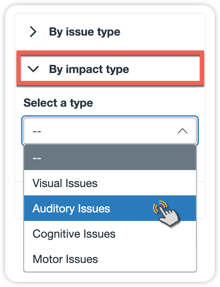
Under the "Ways to Get Started" section of the Scorecard Home Screen, users can choose to view Visual, Auditory, Cognitive, and Motor Issues from the "by Impact Type" dropdown menu. Selecting "Get Started" after choosing an Impact Type will bring users straight into UFIXIT where they can begin remediating those specific issues found within their Canvas content. |
|
2) Filtering Issues From Within UFIXIT
Selecting the "Filters" button at the top left of UFIXIT will reveal a sidebar where users can select from one (or more) of the four impact types by which they'd like their issues filtered.
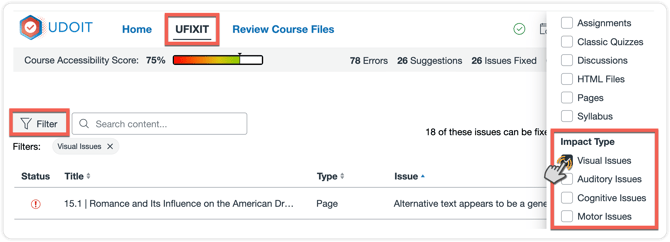
Additional filters can be placed here as well to further narrow down what issues are being shown.
For a list of the specific issues identified by UDOIT for each impact type, visit the UDOIT Home Page section of the UDOIT User Guide.
So What Does Each Impact Type Mean for Learners?
These impact type summaries help explain how accessibility issues may affect learners in different ways depending on their needs and how they interact with content.
-
Visual Issues
These accessibility issues can create barriers for people with visual disabilities who rely on screen readers, magnification, high contrast settings, or other assistive technologies to access content. Problems such as unclear links, improper heading structure, low color contrast, missing alternative text, and inaccessible tables or embedded content can make information difficult to read, navigate, or understand. Addressing these issues helps ensure content is more readable, structured, and accessible for all users.
-
Auditory Issues
Missing or inaccurate captions, lack of transcripts, and multimedia without text alternatives can make important information difficult or impossible to access for learners who are deaf or hard of hearing. Addressing these issues helps ensure media content is understandable, inclusive, and accessible for users with a wide range of auditory accessibility needs.
-
Cognitive Issues
Problems such as inconsistent structure, skipped headings, moving or blinking content, overly long pages, and improperly formatted tables can increase cognitive load and make information more difficult to follow for learners with cognitive disabilities. Addressing these issues helps create content that is clearer, more organized, and easier for all users to process and navigate.
-
Motor Issues
Multimedia content that depends on plugins or unsupported formats may be difficult to interact with using keyboards, assistive devices, or mobile technologies. Using more modern, browser-supported media formats helps ensure content is easier to access, navigate, and interact with across a wider range of devices and accessibility tools.